Presentation Creation
Choose materials and a presentation style, review the outline, then generate, preview, and download a research presentation
Start from a research conversation
Click “Create Presentation” in the research input area, or choose “Research Toolbox → Paper to Presentation.” Add materials such as PDF, DOCX, Markdown, or TXT files, describe the topic, audience, language, and slide count, and choose a presentation style.
For example:
Turn the selected materials into a group meeting presentation on interface stability in solid-state batteries.
The audience is graduate students in materials science. Start with an 8-slide outline that distinguishes background, methods, evidence, and limitations.
Review the outline and generate
First check that the outline accurately reflects the materials. Confirm the section order, emphasis, and slide count, then use the confirmation action in the conversation to start generation. To make changes, specify the content and slides to add or remove.
Follow the task's progress during generation. When it is complete, view the presentation preview on the right side of the conversation and use the download action provided for that file. A PPTX is available only after generation has actually finished and a download is offered. An outline or thumbnail is not the final file.
Preview, revise, and continue
Check titles, figures, citations, and text density slide by slide. To edit further, open the relevant file or full editor from the result. The result interface shows which per-slide feedback, regeneration, and download formats are available.
Reopening a historical result takes you to the existing presentation; viewing the file does not generate it again. Find results from older conversations in Conversation Files or the PPT category in Personal Space.
Standalone presentation editor
The standalone PPT page retains workflows for file uploads, URLs, and pasted text, with outline review, generation confirmation, slide previews, and downloads. Its controls are located differently from those in research conversations. Configure the aspect ratio, language, and slide count using the options shown in the current interface.
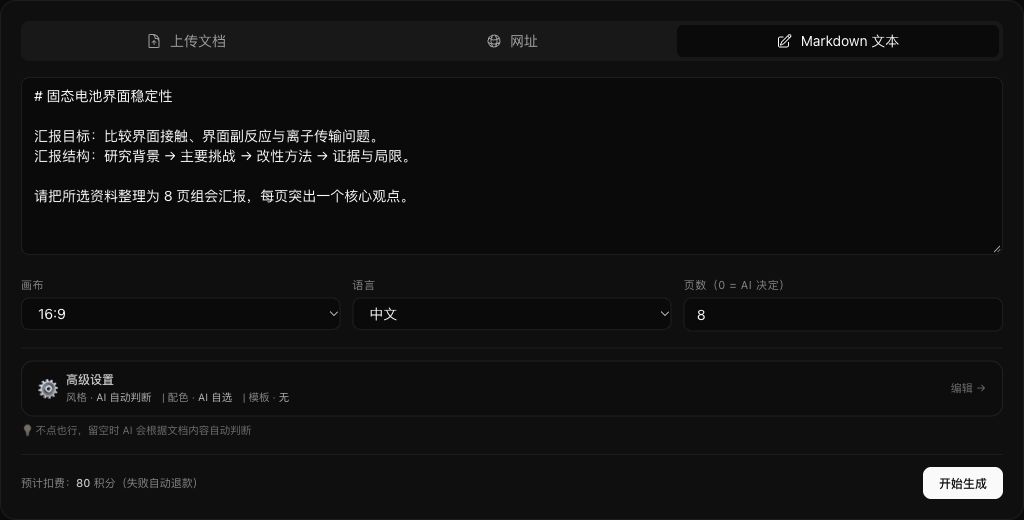
Charges and failure handling
Outline creation, platform model calls, and slide generation may produce separate usage. Check the confirmation notices and usage details. If generation fails, review the error and refund records. A final generation failure does not mean all completed outline work or model calls become free.
If credits are insufficient, keep your materials and instructions, add credits, and then use the page's continue or retry action. Open the downloaded PPTX in PowerPoint, Keynote, or WPS and verify formulas and layout.