Quick Start
Begin with a research question, search for papers, parse PDFs, organize materials, and continue your research
Register and sign in
- Open the Ai4Scholar home page and click “Get Started Free.”
- Register or sign in using one of the email or third-party options offered on the page.
- The platform opens the workspace available to your account. If research mode is enabled, follow the steps below. Other accounts can start with standalone tools such as Literature Search and Document Parsing.
Your account page shows any credits and trial access offered to new users. For purchasing and usage rules, see Credits and Plans.
Your first research conversation
1. Ask a focused question
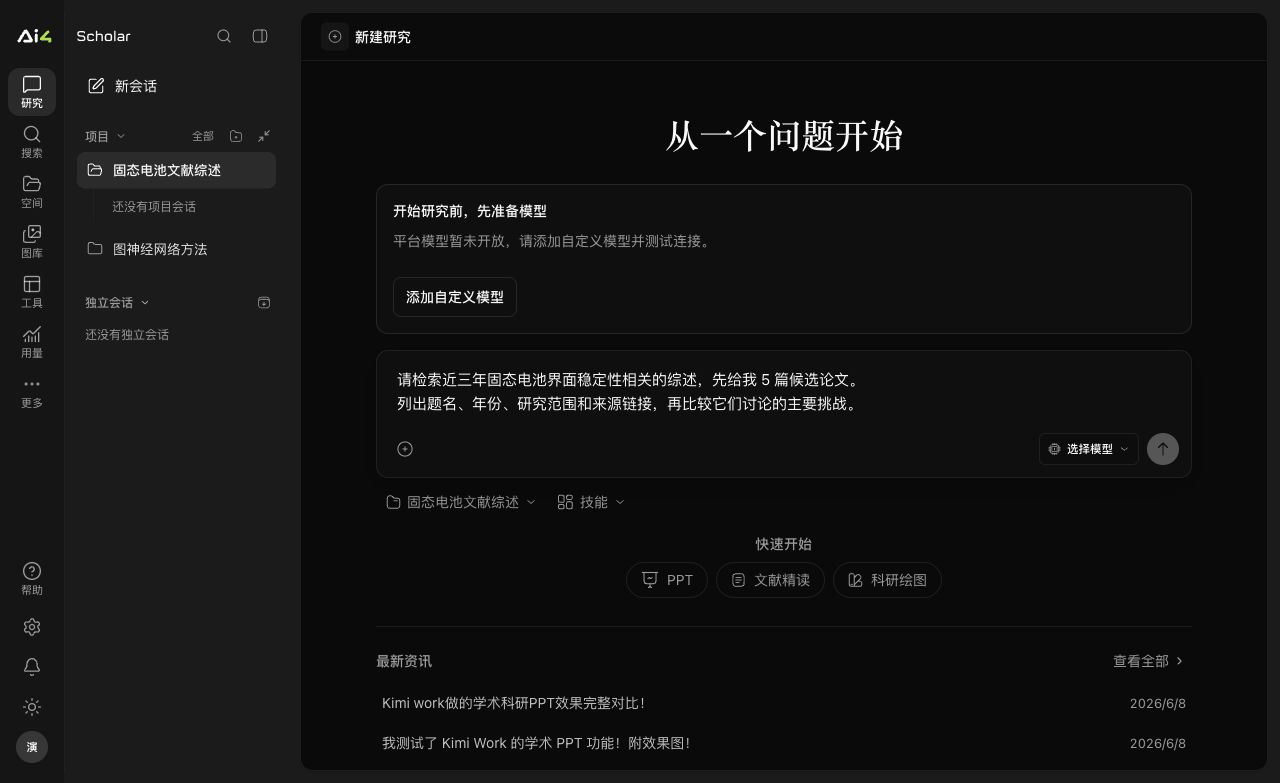
In research mode, click “New Conversation.” You can start without a project. If this research belongs to an existing project, select that project in the input area before sending.
For example:
Find reviews from the past three years on interface stability in solid-state batteries. Start with 5 candidate papers.
List each title, year, research scope, and source link, then compare the main challenges they discuss.
Do not treat information missing from an abstract as a conclusion of the paper.
Before sending, check your model selection and available credits. The platform provides a “Smart Model” option, and you can configure your own model in settings. If the page asks you to set up a model, complete that step before sending. See Research Workspace for setup instructions.
2. Check the sources, then follow up
During the research, you can view answers, tool activity, and conversation files. Open candidate papers' original links to verify titles, authors, and years, then ask a more specific follow-up, such as “Compare only interface treatment methods for sulfide solid electrolytes.”
You can also search manually using “Literature Search” in the left sidebar. Select results to save a literature list, add them to project materials, or use them in a conversation. Return to “Research” in the main navigation to continue the current conversation; clicking “New Conversation” starts a new input context.
3. Parse key PDFs
Open “Research Toolbox → Document Parsing” and upload PDFs you have obtained. Each file must be no larger than 50 MB; you can submit several files at once.
Parsing records are saved to your personal account without requiring a project. Once parsing is complete, view the Markdown full text and references. To bring the content into your research, click “Use in Conversation,” confirm that the material has been added to the draft, and then send your question.
4. Organize ongoing work in a project
When you plan to keep working on a topic, create a project in the project section and add selected materials to it. Choose that project before sending a new conversation.
Clicking a project row only expands or collapses its conversations; the content you are viewing and your draft stay in place. Click a specific conversation to switch to it. View files in “Personal Space” or in “Conversation Files” on the right side of a conversation.
Next steps
- Organize text and references: Writing Editor, Citation Annotation.
- Create illustrations or presentations: Scientific Drawing, Presentation Creation.
- Call the platform from your own app: Open API.