Research Workspace
Learn about research conversations, two-level navigation, model settings, personal space, and reusing materials
Enter the workspace
Research mode brings conversations, search, and tools into one interface. Accounts with research mode enabled can enter through Get Started. If that entry is not shown, you can continue using the standalone tool pages.
On desktop, the first column on the left contains feature navigation. The second shows projects, conversations, or file categories for the selected feature. You can collapse the second column to make more room for content. On mobile, navigation buttons open drawers with the same functions.
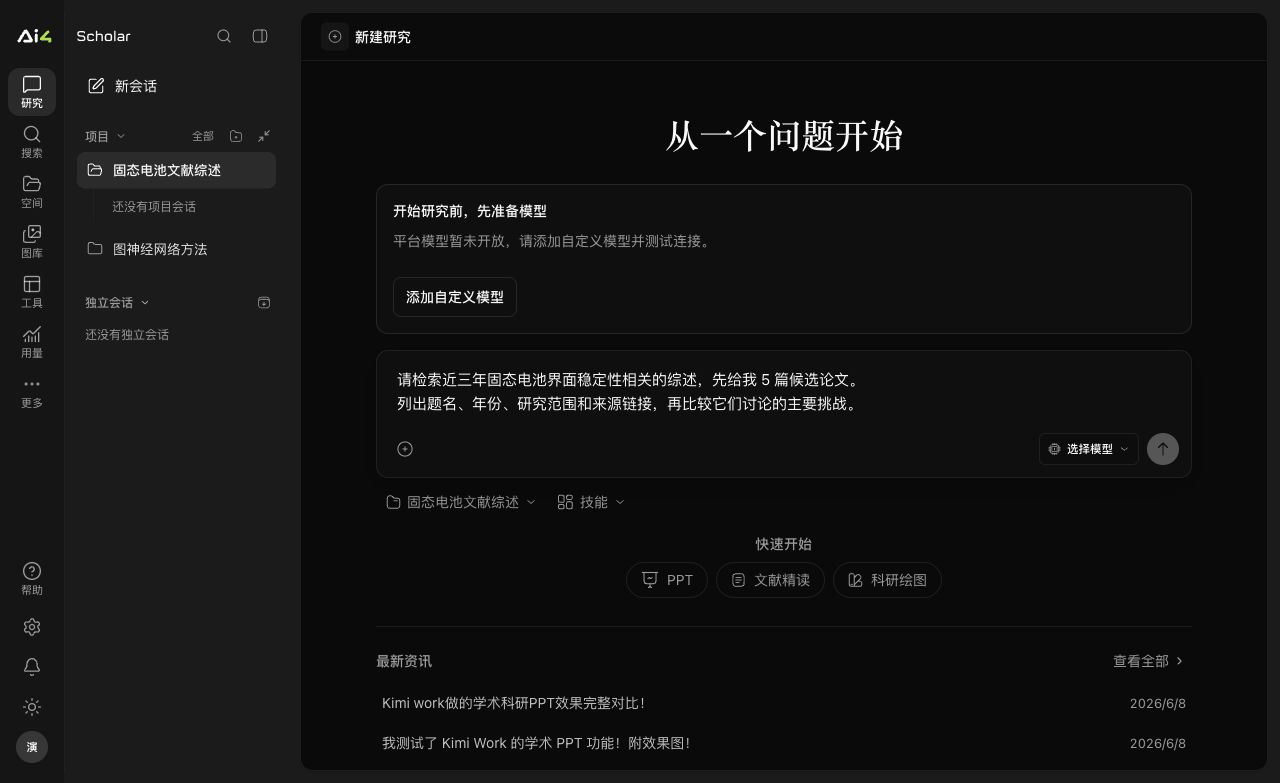
Project sidebar and conversations
- New Conversation: Start a new draft. Choose a project before sending, or keep it standalone.
- Click a project row: Expand or collapse that project's conversations. The open content, URL, and unsent draft stay unchanged.
- Click a specific conversation: Open its messages and files.
- The “…” menu beside a project: Edit the title, pin the project, or view archived conversations. Conversations also have their own management menus.
- “Research” in the main navigation: Return from search, personal space, or tools to the current research context.
For example, while viewing a conversation in “Solid-State Battery Review,” expanding “Graph Neural Network Methods” affects only the sidebar. The content area changes only when you click a specific conversation in the second project.
Platform and custom models
New conversations can use the platform's “Smart Model,” which selects an available provider channel. The model list indicates whether charges apply and whether a free-use period is active.
Add a custom provider under “Settings → Model Settings”:
- Choose a protocol or provider type supported by the interface.
- Enter the Base URL, API key, and model ID supplied by your provider.
- Save the configuration, test the connection if needed, and choose a default model.
The default model applies to new conversations. Existing conversations keep their original model. Updating a provider configuration does not automatically replace the model in an ongoing conversation.
A custom model's API key accesses that provider; a “Platform API Key” allows external apps to access Ai4Scholar. They are not interchangeable. Your provider bills custom model usage, while calls to platform tools still consume platform credits.
Search sources and tools
“Settings → Search Sources” controls which sources research conversations may use. For a manual search, open “Literature Search” in the main navigation, then choose a data source.
“Research Toolbox” includes Document Parsing, Reference Extraction, Citation Annotation, Reference Completion, Writing Editor, Scientific Drawing, Image Vectorization, Document Delivery, and Paper to Presentation. Some tools open a form directly; drawing and presentation tools can also bring your requirements into the current conversation.
Conversation files and personal space
Conversation Files, on the right side of a conversation, shows the files used or produced in that research. Personal Space collects files across your account. Filter them by file category, project, and keyword, and switch between grid and list views.
Clicking a project in personal space changes only the file filter. Opening a PDF parsing result keeps you in the research workspace; the back button at the top returns to the originating space or conversation. Reopening an existing parsing result does not submit it for parsing again.
“Use in Conversation” adds the selected material to the draft so you can add a question before sending. “Add to Project Materials” asks you to choose a target project and saves the selected version. See Materials in a Project.
Settings, help, and the legacy interface
Settings, Help, and the account menu are at the bottom of the left sidebar. Settings also includes your profile, credits, redemption codes, platform API keys, and integrations. “Invite Friends” is in the account menu.
To use the older standalone tool interface, choose “Legacy Interface” from the account menu. The top bar in the legacy interface lets you return to research mode.